Upload, order and rotate photos
Add photos to a property, pick the cover, put them in order and rotate them without leaving the console.
- Admin
- Agent
- ⏱ 1 min
- Updated October 6, 2026
Open the Photos section
Open the property and scroll to Photos. On a property that already exists, each change saves as you make it: you don't need Save changes.
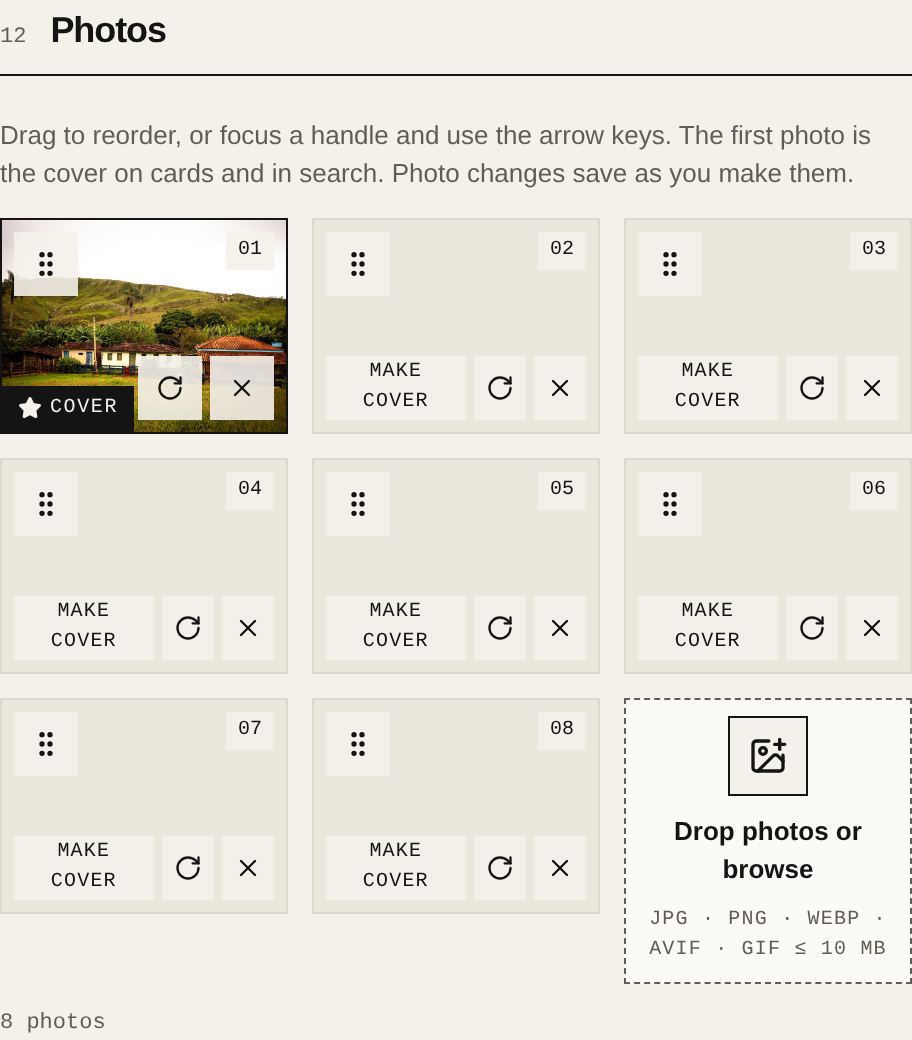
Upload the photos
Drag them onto Drop photos or browse, or tap it to pick them. JPG, PNG, WEBP, AVIF and GIF are accepted, up to 10 MB each. A bigger photo isn't uploaded, and the console names it.
Put them in order
Drag each photo by its handle to where you want it. With a keyboard, focus the handle and use the arrow keys.
Pick the cover
The first photo is the Cover: it's the one shown on cards and in search. Tap Make cover on another photo to move it to the front.
Rotate a photo
Tap Rotate photo, the circular arrow on the photo. Each tap turns it 90°. Animated GIFs can't be rotated.
Remove a photo
Tap the photo's X. A message appears with Undo; the photo is deleted when that message closes.