Add, move and remove sections
Build each page of your site from the sections you want, in the order you want.
- Admin
- ⏱ 1 min
- Updated October 6, 2026
Go to the page
In Website, open the page you want to build: choose Browse site at the top and tap its links in the preview, or tap the page in the Pages tab. Switch back to Edit sections to edit.
Open the section list
On a wide screen, the list is on the left. On a narrower one, tap the group named after the page ("Sections — Home", for example) at the top of the inspector.
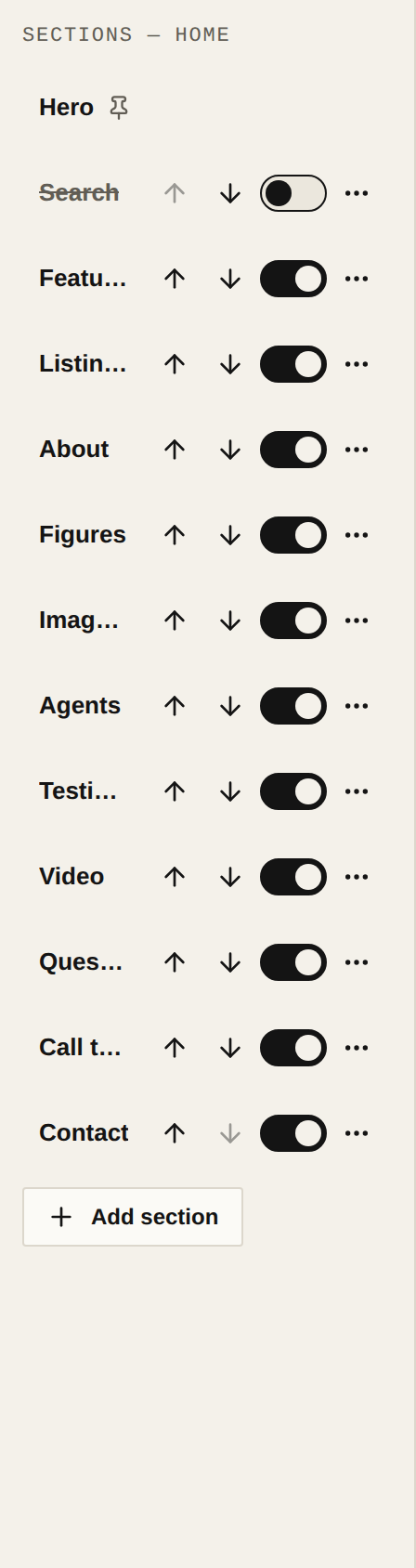
Add a section
Tap Add section at the end of the list, or the + that appears between two sections. In Add a section, choose the kind. Kinds that can only appear once and are already there say Already on this page. The new section opens in the inspector so you can fill it in.
Move it
Use the arrows on each row to move it up or down. A section pinned to the top, like the Hero on Home, always comes first.
Hide or remove it
The switch on each row hides the section on your site without losing what you wrote. To delete it, open its menu, tap Remove and confirm. In the same menu, Duplicate makes a copy when the kind allows it. Sections with a pin are always on and can't be removed.
Publish
Tap Publish so your visitors see the new page.