Create a custom page
A page of its own for a special listing, a neighbourhood or winning sellers, with its own address to share.
- Admin
- ⏱ 1 min
- Updated October 6, 2026
Tap New page
In Website, tap the Pages tab. Under Custom pages, tap New page. Your site can have up to 50.
Choose a template
Under Template, choose Listing landing, Neighbourhood guide, Sell with us or Blank. Each comes with its sections, which you can change later.
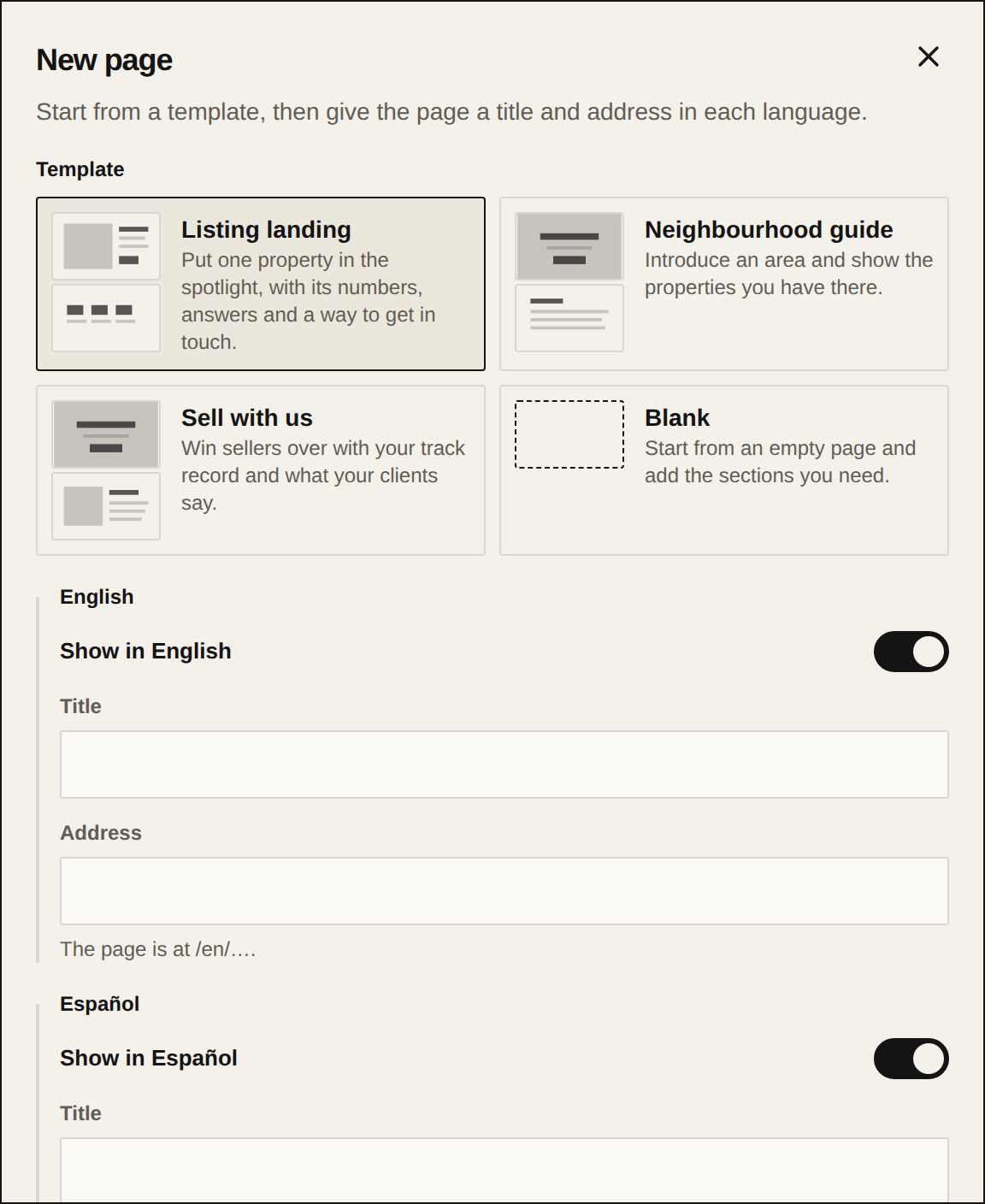
Give it a title and address
For each language, type the Title. The Address fills in from the title; if you change it, use lowercase letters, numbers and hyphens. Turn a language off if the page isn't for it.
Decide who sees it
Under Visibility, keep Unlisted so only people with the link see it, which suits ads and WhatsApp. Choose Listed so it shows in search results and can go in your menu. With Expires on, you can give it an end date.
Create the page
Tap Create page. It opens in the preview, and you edit its sections and text like any other page.
Publish it
The page stays a Draft until you publish. The button tells you, for example "Publish · 1 page". Tap it, and the page goes live at its address.