Edit the menu and footer
Choose which links go in your site's menu, how it looks and what the footer shows.
- Admin
- ⏱ 1 min
- Updated October 6, 2026
Open Menu
In Website, open the Menu tab.
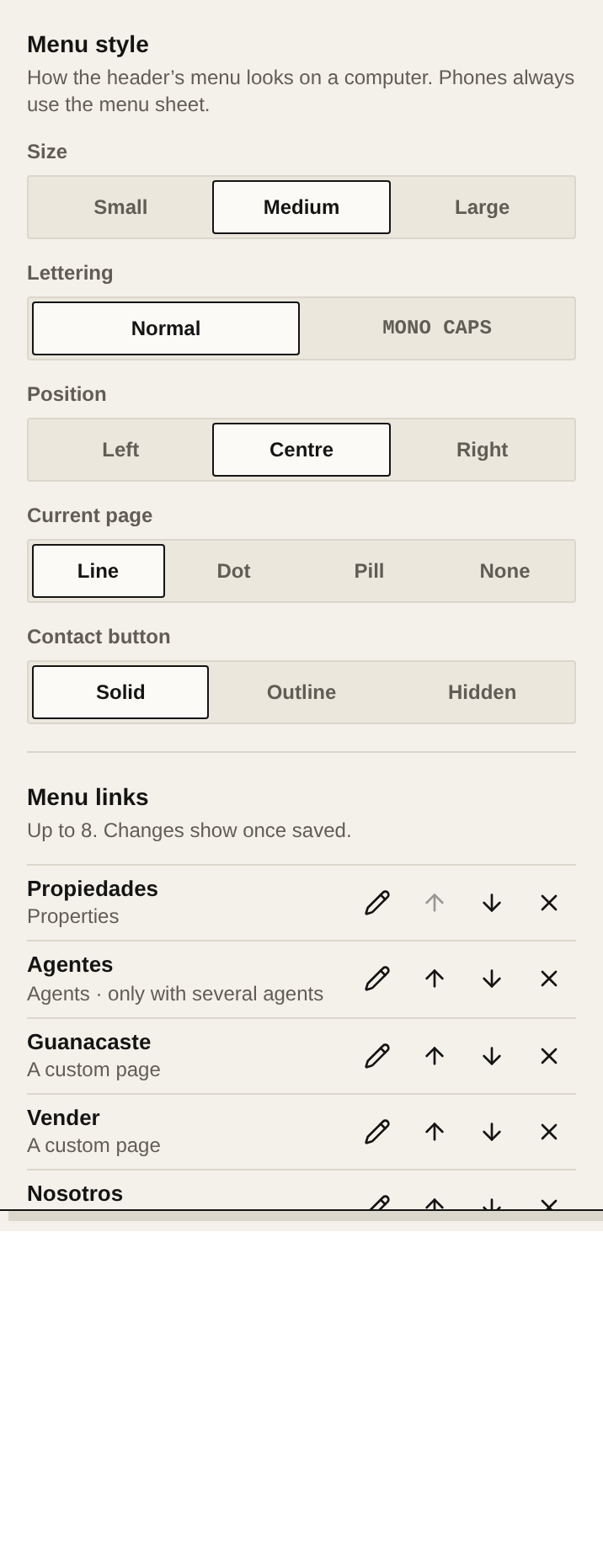
Set the menu style
In Menu style, choose the Size, the Lettering, the Position, how the Current page is marked and the Contact button. This style shows on a computer; on a phone the menu always opens as a panel.
Add a link
In Menu links, tap Add a link. In Links to, choose A page, A custom page or A web address. If you link to Properties, you can filter it, for example to For sale in one location. Type the label in each language and tap Add link. The menu holds up to 8 links.
Reorder or remove links
Use the arrows on each link to move it, the pencil to edit it and the X to remove it.
Edit the footer
Open Footer, at the end of the tab. Add a column creates up to 3 columns of links, each with its own title and up to 8 links. Also write the tagline and the copyright line for each language; the hint under the copyright tells you which parts are filled in on the site.
Publish
Tap Publish so your visitors see the new menu and footer.