Import listings from a spreadsheet
Upload a CSV with one listing per row, check the preview and confirm. Nothing is imported before that.
- Admin
- ⏱ 1 min
- Updated October 6, 2026
Download the template
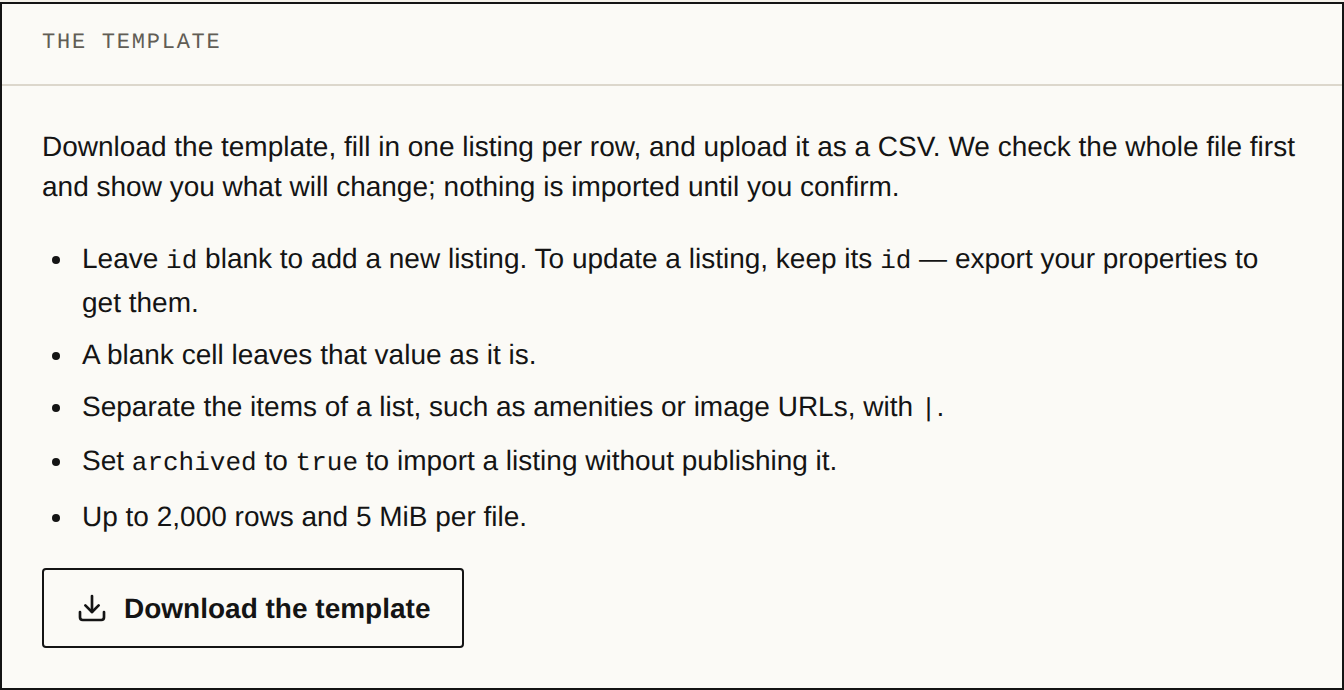
In Import, open the Spreadsheet tab and tap Download the template.
Fill in one listing per row
Leave the id column blank to add a new listing. To update one you already have, keep its id: export your properties from Properties to get them. A blank cell leaves that value as it is, and the items of a list, such as amenities or image URLs, are separated with a vertical bar (|).
Save it as CSV and upload it
Save your spreadsheet as a CSV of up to 2,000 rows and 5 MiB. Tap Choose a CSV file or drop the file on the box. You'll see Checking your file… while we check all of it.
Check the preview
Under Preview you see how many rows will be New, how many Updated and how many have Errors, and what each row will do. Rows with errors are skipped. If something's wrong, fix the file and tap Upload another file.
Confirm the import
Tap the import button, which says how many listings will go in, then Import. They're published on your site and on your enabled portals. The preview expires after 24 hours; after that, upload the file again.
Check the result
Under Import finished you see how many were Created, Updated and Skipped, with the rows that had errors or warnings. Tap View properties to see them.