Change colours, fonts and style
Set your brand colours, the font pairing and details like corners and buttons.
- Admin
- ⏱ 1 min
- Updated October 6, 2026
Open Style
In Website, open the Style tab. If a section is selected, close it first with the X on its panel.
Pick your colours
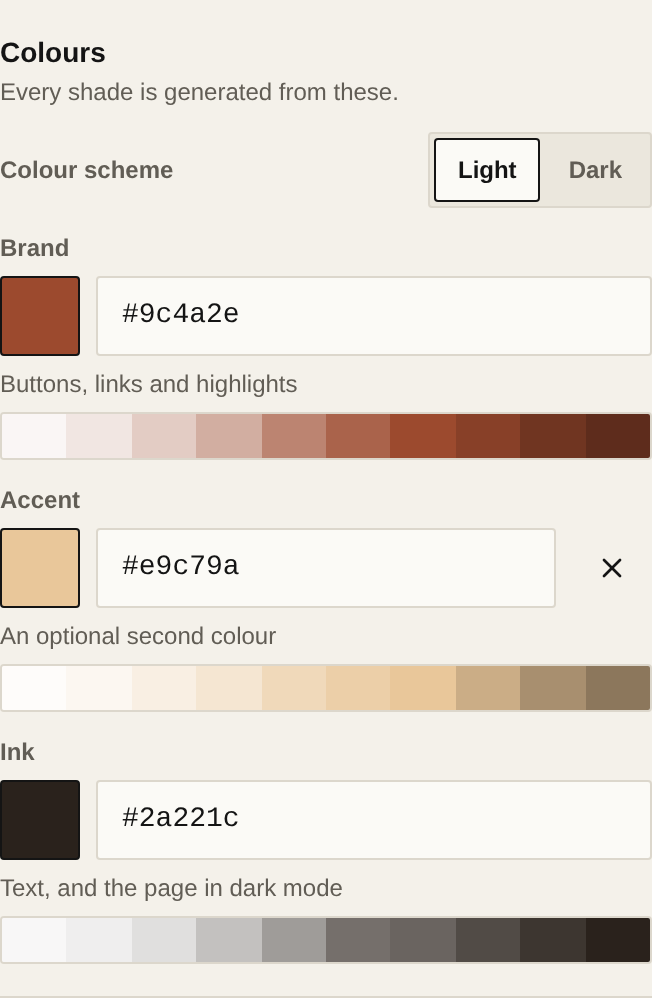
In Colours, choose Light or Dark under Colour scheme. Then set the Brand colour (buttons, links and highlights) and the Ink colour (the text). Type the code, like #1c4e80, or tap the swatch to pick it. Add accent adds an optional second colour. Every shade is generated from these.
Pick the fonts
In Fonts, tap a pairing in the list. Each one has a font for headings and one for body text, and they all work in English and Spanish.
Adjust the details
Under Style, choose how the Corners, Spacing, Buttons, Headings, Photos and Sections look. The preview changes straight away.
Fix readability
If a colour makes some text hard to read, a warning shows at the top and the publish button asks you to fix it. Tap the warning: for each case, use the colour it suggests or adjust your colours by hand.
Publish
Tap Publish so your visitors see the new style.