Set up your site for the first time
Choose a design, add your brand and publish your site in four steps. Then fine-tune it in the editor.
- Admin
- ⏱ 1 min
- Updated October 6, 2026
Choose a design
When your account is new, Home opens Set up your website full screen. In Choose a design, tap a colour circle to see each palette, then tap Choose on the design you like.
Add your brand
Upload your Logo. If you'd rather use your own colour than the design's, tick Use my brand colour and pick it in Brand colour. Both are optional.
Decide on starter pages
With Add starter pages ticked, your site starts with an About page and a "Sell with us" page, already written in English and Spanish. You can edit or remove them any time.
Publish your site
Check the summary and tap Publish my site. When it's done you see Your site is live: tap View your site to open it, or Go to the console to carry on. If some text doesn't read well on your colours, you're taken to the editor to fix it before anything goes live.
Fine-tune it in the editor
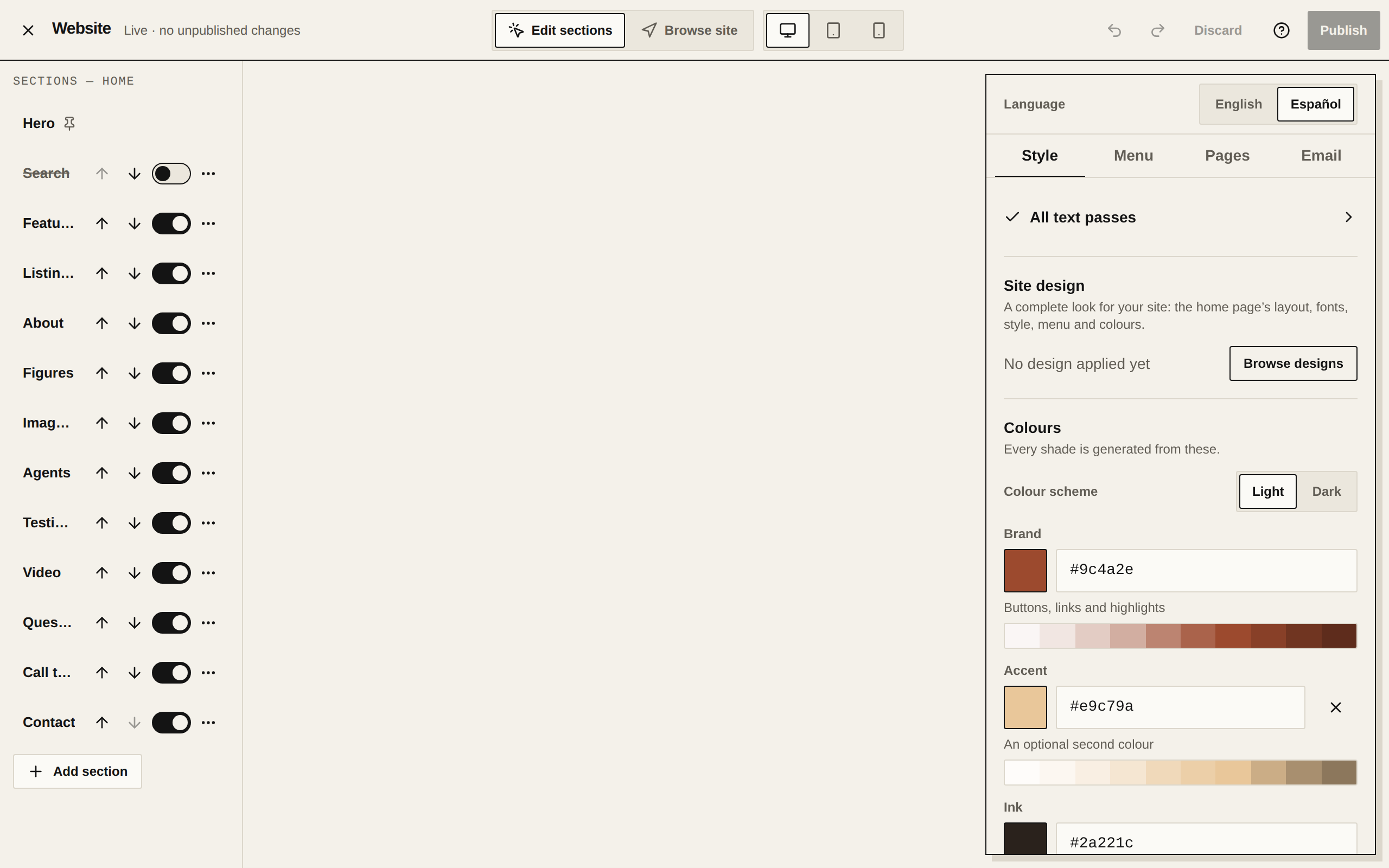
In Website, your site fills the screen and the inspector sits on the right. Tap a section of the page to edit its text, or use the Style tab for the design and colours. Every change is saved as a draft.
Publish your changes
Tap Publish at the top right. Until then, visitors keep seeing the previous version. The Set up your site step in Getting started is ticked the first time you publish.