Make a Reel of your listing
AI turns your photos into a 15–30 second vertical video in your site's design. You shape its shots, text and music, and publish it.
- Admin
- Agent
- ⏱ 2 min
- Varies by plan
- Updated October 31, 2026
Open the Reel tab
In Social, open a post about a property and tap the Reel tab. Only posts about a property with photos have a Reel. If we built you a demo site, it arrives with one Reel already made of one of your listings: it's the first post in Social.
Generate the Reel
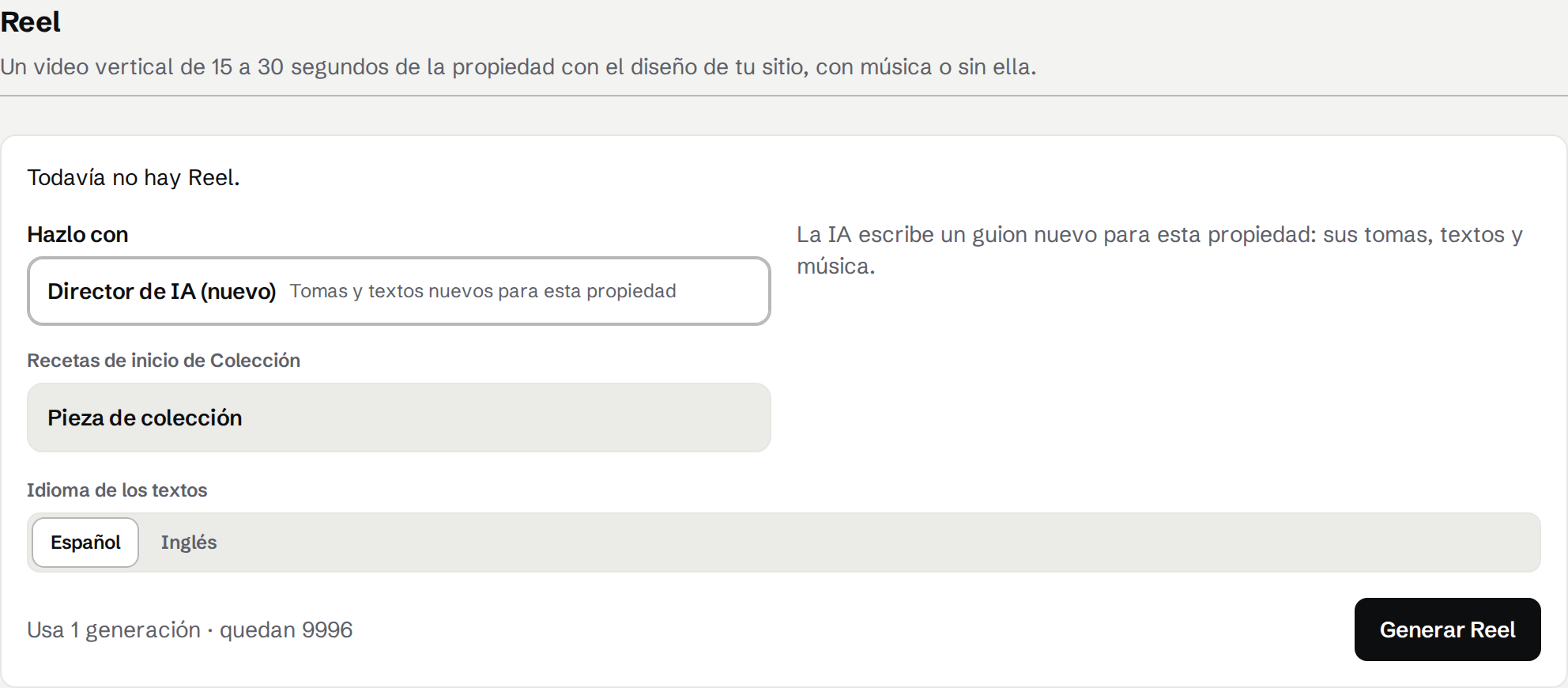
Under Make it with, keep AI Director (fresh) or pick a Recipe, to make it like a Reel you saved; your default is already picked. Tap Generate Reel. It uses 1 AI generation, and only once the Reel has rendered: if it fails, it costs nothing and you can tap Try again. As soon as AI has written the Storyboard, it opens in the editor and plays under Preview, in your site's design and with its music.
Arrange the shots
Under Shots, drag a shot by its handle, or use its arrows, to move it. Tap Add shot to copy the selected one, or the bin to remove one. A Reel has 1 to 12 shots and runs 15 to 30 seconds; the list tells you how long it runs.
Edit a shot
Tap a shot to edit it: its Text, within the counter's limit, its Photo (any of the property's), its Block, Move, Transition and Duration. Blocks named with your site's design are its own. The Preview plays each change at once, and your edits save as a draft: you'll see Draft saved.
Pick the music
Under Music, pick a Mood, then a track. Tap play to hear one. Pick No music if you'd rather add trending audio in Instagram.
Undo, reset or regenerate
Undo and Redo step through this session's edits. Reset goes back to the Storyboard AI first wrote. Regenerate writes a new one: it discards your edits and uses 1 AI generation.
Tap Done, then publish
Tap Done to render the Reel with your edits, free. Then tap Download Reel, or Publish with the Reel format. If you publish before tapping Done, the Reel renders with your edits before it goes out.