Make branded images for social media
Your photos and the listing's details in your site's design, as Feed and Story frames. They're free.
- Admin
- Agent
- ⏱ 2 min
- Updated October 30, 2026
Open the Images tab
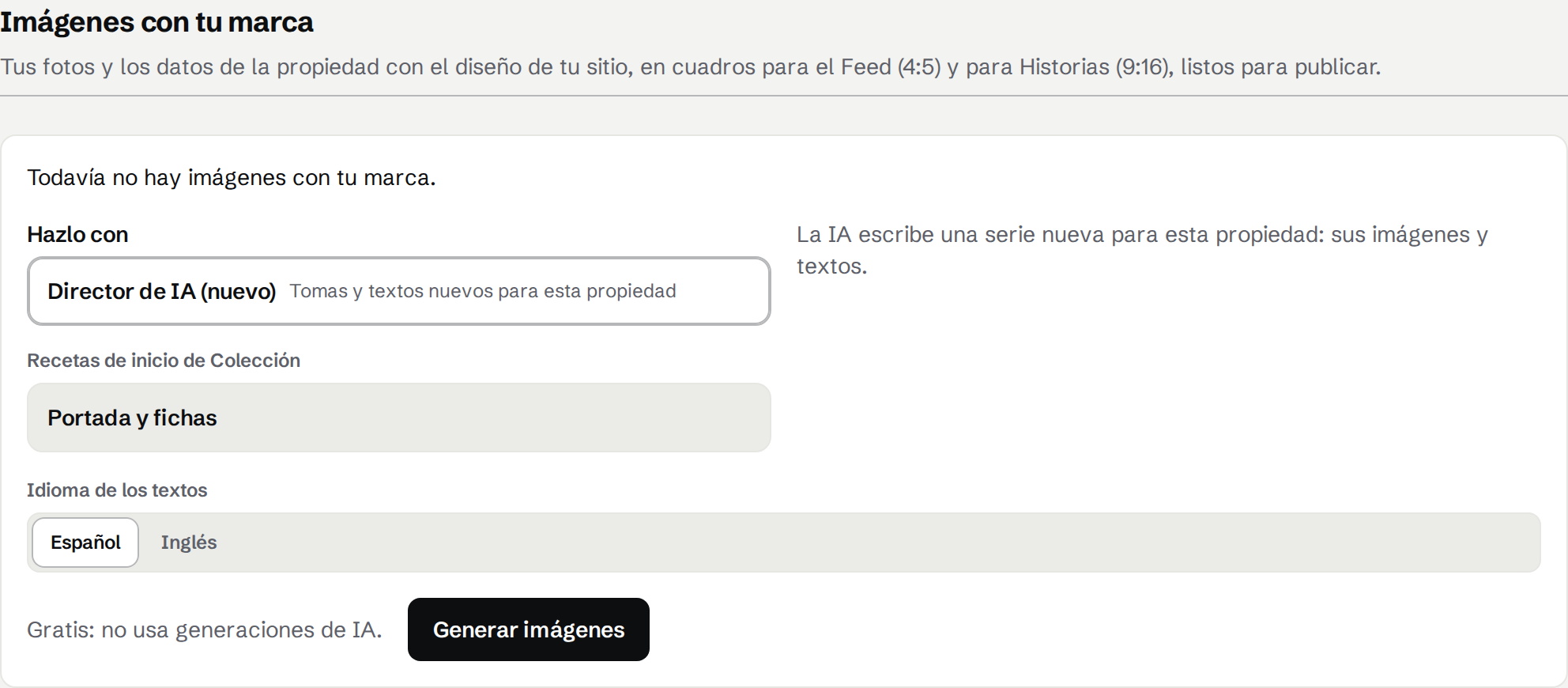
In Social, open a post about a property and tap the Images tab. Only posts about a property with photos have them.
Generate the images
Tap Generate images. They're free: they use no AI generations. AI writes a Storyboard from the listing's details. As soon as it's written, it opens in the editor and Preview shows each frame in your site's design.
Check the frames
Each frame comes in two sizes: Feed, a tall frame for posts, and Story, full screen for Stories. There's a cover, one frame per shot and an end card.
Edit the frames
Under Shots, drag a shot to move it, tap Add shot or remove one. Tap a shot to change its Text, Photo and Block, or tap Cover to change its Look. The Preview shows each change at once, with Instagram safe areas if you turn them on, and your edits save as a draft.
Tap Done
Tap Done to render the images with your edits, free. Undo, Redo and Reset work as they do for a Reel. Regenerate writes a new Storyboard, discarding your edits, and it's free too.
Download or publish them
Tap Download Feed or Download Story to get a zip of the frames. When you publish from Publish in the images' language, a Feed post on Instagram or Facebook goes out with these Feed frames and an Instagram Story with the Story frames, instead of your photos. If you publish before tapping Done, they render with your edits first.