Reuse a Reel with a Recipe
Save a Reel or image set as a Recipe, and Generate fills it with another property's photos and details.
- Admin
- Agent
- ⏱ 2 min
- Varies by plan
- Updated October 31, 2026
Save a Reel as a Recipe
Open a post's Reel or Images tab and tap Save as Recipe. Only an Administrator can. Give it a Name.
Choose its photos and text
Each shot asks for the kind of photo it showed, like Pool or Kitchen. Change its Photo, or pick Best photo. When a property has no such photo, it takes the best one left. Each Text starts as Written by AI: AI writes it for every property. Pick Fixed line to write it yourself, and tap a token like {price}, {place} or {beds} to fill in that property's details. A fixed line too long for a property, or missing a detail, is written by AI for that property.
Make it the default
Check Use when anyone clicks Generate, then tap Save Recipe. Generate starts on it, and so does a post you create from a Post Suggestion.
Generate with a Recipe
On another property's post, Generate shows Make it with: AI Director (fresh), Your team’s Recipes and the starter Recipes for your design. Next to it, you see how the Recipe fills: each shot's photo and each line, fixed or by AI. Until AI has looked at that property's photos, each shot says its photo is chosen when you generate: Generate picks them then. It uses 1 AI generation, like any Reel. Editing it after is free.
Manage your Recipes
In Social, open Recipes and choose Reels or Image sets. On a Recipe, tap Edit to change it in the Reel editor. It plays with your latest property: pick another under Preview on. You can also Make default, Duplicate or Delete it. Agents use Recipes and preview them, but can't change them.
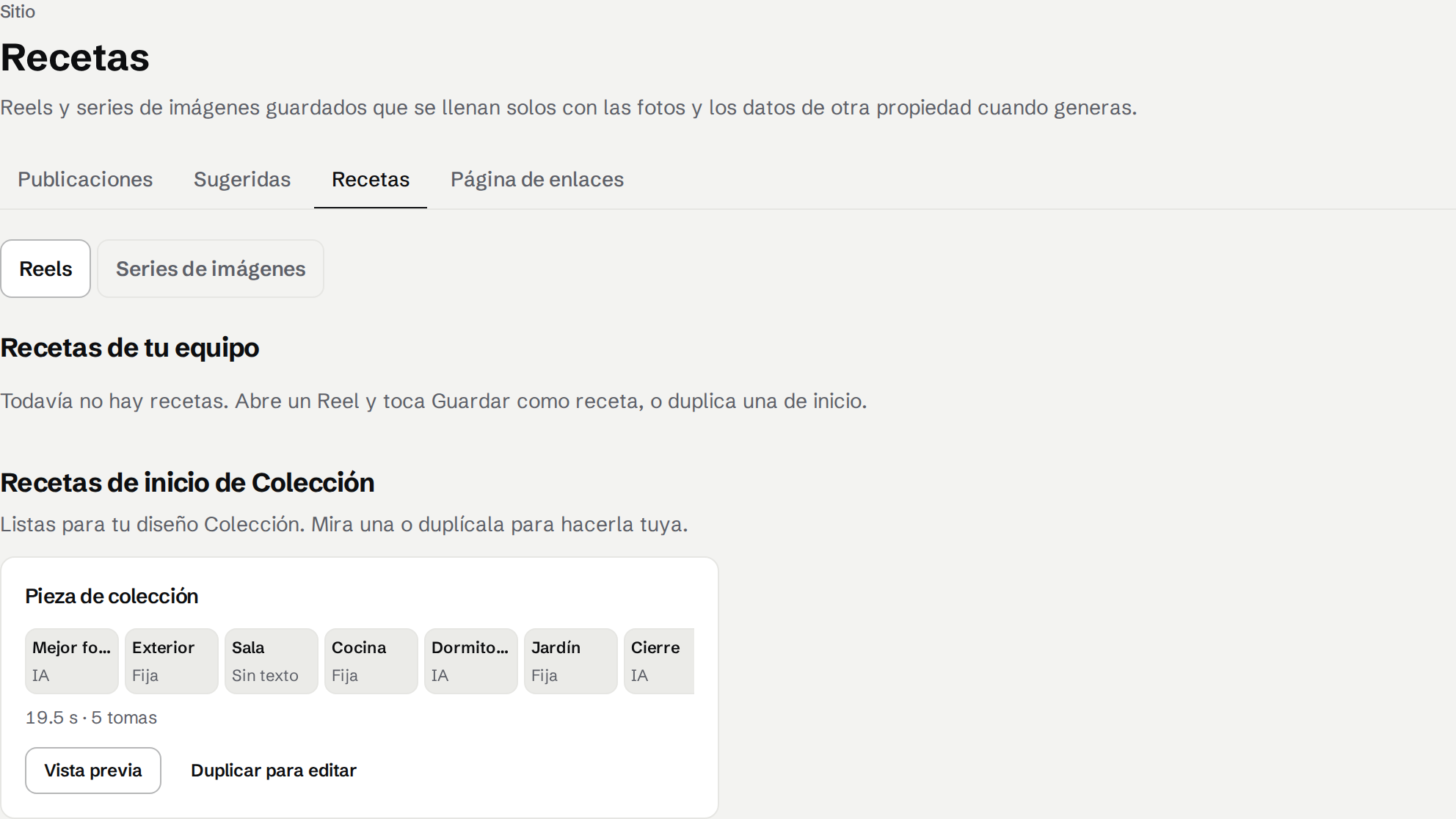
Start from a starter Recipe
Every design comes with two starter Recipes, a Reel and an image set. Tap Preview to see one, or Duplicate to edit to make it yours.